You can file 1099s for multiple businesses under one TaxFormHero login by creating a separate payer record for each reporting entity, selecting its tax year and form, and adding or importing its recipients. Each payer keeps its own legal name, taxpayer ID, recipient directory, forms, and filing history. One account organizes the work; it does not combine different businesses into one IRS filer.
- TaxFormHero supports multiple client payers and EINs under one login without a subscription or seat licenses.
- Import payer profiles separately from recipient-and-form data.
- Choose the payer, tax year, and form before importing recipient records.
- Uploaded forms arrive as drafts; reviewing and submitting them are separate actions.
- Check each payer's identity, totals, delivery selections, and filing results independently.
TaxFormHero's 1099 filing software for CPAs and tax professionals supports as many client payers as your firm manages. The same arrangement works for an owner or bookkeeper handling several separately reporting entities. You do not need a different account simply because you are adding another payer.
How to file 1099s for multiple businesses under one login
Repeat one controlled workflow for every payer: select the entity, prepare its forms, review its totals, and submit deliberately. TaxFormHero supports both manual entry and Excel/CSV imports, so a small client and a high-volume client can share the account without using the same preparation method.
- Create or sign in to your account.
- Add each reporting business as a payer, individually or through the payer importer.
- Select the intended Payer, Tax year, and Form.
- Add recipients manually or use that form's import template.
- Review draft records against the selected payer's approved source data.
- Choose any TIN checks, state filing, and recipient delivery services.
- Select reviewed forms, use Add to cart, and complete submission.
- Track filing results and retain records under the original payer.
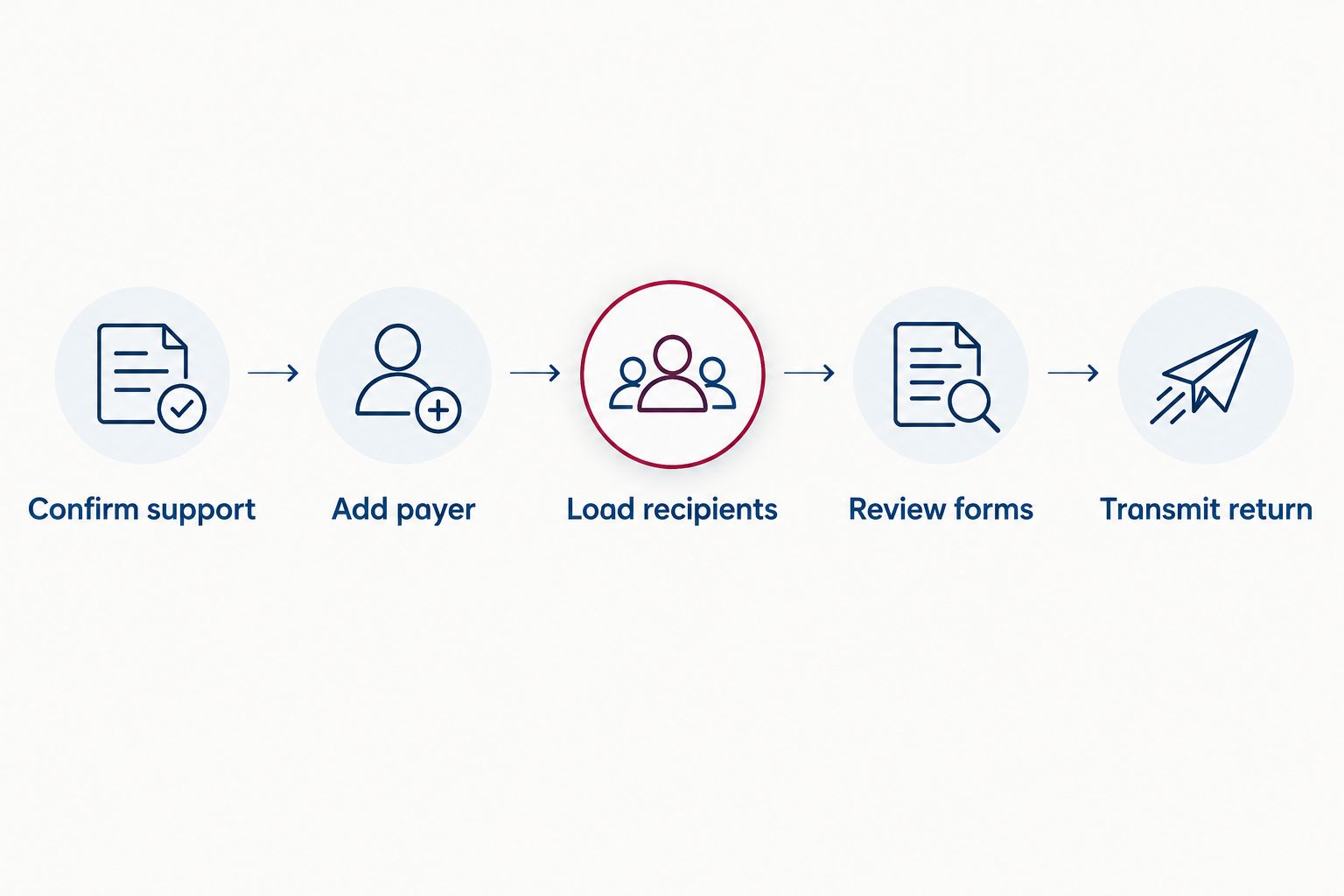
For the illustrated screens and template process, follow the TaxFormHero step-by-step filing guide. The guide shows manual filing, bulk imports, correction handling, and W-9 collection using sample data.
TaxFormHero is an IRS-authorized e-filing platform, so you can e-file Form 1099-NEC online without paper or a subscription.
Why separate payer records matter in multi-entity 1099 filing
The payer's name and tax ID identify who made the reportable payment—not who prepared the form. A CPA's login does not make the CPA firm the payer for its clients' contractor payments. Multi-entity 1099 filing keeps separate EINs and client records within one account while preserving each business's reporting identity.
The IRS's guidance on reporting payments to independent contractors explains the payer's reporting obligation and the electronic-filing requirement. Assess the general 10-return threshold across covered form types for each filer, not by totaling unrelated clients in your firm's dashboard. Form 1096 is not required when filing electronically.
Separate records also prevent a shared recipient from creating confusion. If the same contractor works for several clients, each reporting payer needs its own payment total and return when required. Do not merge those client payments into a single 1099 merely because the recipient's name matches.
Determine the correct reporting payer before creating records. Several locations or departments of one legal payer do not automatically require separate payer profiles. Conversely, related companies can need distinct profiles even when they share an owner or mailing address. Disregarded entities require particular attention to the name and taxpayer ID used for reporting.
Organize by reporting identity, not by familiar trading name. A correctly calculated return under the wrong EIN is still incorrect.
Before you start: prepare one filing folder per business
Collect the information for each payer before you start entering forms:
- Legal reporting name, taxpayer ID, address, and contact details.
- Recipient names, taxpayer IDs, addresses, and W-9 records.
- Payment totals separated by recipient, tax year, and reporting category.
- Any federal or state withholding information.
- Applicable state reporting requirements.
- Recipient delivery instructions and consent for electronic furnishing.
- Client approval arrangements when filing on another business's behalf.
Give each source file an unambiguous internal identifier. An example filename is Client-A_1099-NEC_TY2026_Approved; do not put full taxpayer IDs in filenames or ordinary email subject lines.
Keep the original source data separate from the working import file. If an amount changes during review, record the reason so the client can reconcile the filed total with its books.
Step 1: Add or import each business as a payer
TaxFormHero has a payer importer specifically for onboarding businesses. One row represents one payer—not one contractor and not one invoice.
For a few entities, use Create a payer and enter the details individually. The public walkthrough shows the business-name field, TIN Type, address fields, and a Disregarded Entity field. Confirm the legal reporting name and EIN or SSN from the payer's tax records rather than copying a logo, website name, or invoice heading.
For many clients, start from the payer template and its instruction sheet. Import the payer list, then review the created records before moving to recipient forms. A successful upload is not confirmation that every business identity is correct.
After onboarding, check:
- Does each intended reporting entity have a distinct payer record?
- Are legal names and taxpayer IDs paired correctly?
- Have you accidentally created the same payer twice?
- Does a disregarded entity use the appropriate reporting identity?
Expected result: a reviewed payer directory that you can reuse, rather than a new account for every business.
Step 2: Collect recipient details under the right payer
Recipients belong to the payer you are filing for. Add them manually when the list is short, or include their details in the recipient-and-form import when preparing a larger batch.
If a client cannot provide complete payee information, use TaxFormHero to collect W-9 forms online. Select the payer requesting the form, enter or import the payees, and pay for the requests you intend to send. A signing link is created and emailed only after payment; creating an unpaid request does not contact the recipient.
The recipient completes and signs without creating an account. TaxFormHero makes the signed PDF available, adds the completed payee details to the recipient list, and performs the included name/TIN check. Review the resulting status rather than assuming a request is complete because an email was sent.
For recipients whose W-9 you already hold, use the certified details you have collected. Check whether the name, address, or tax classification changed before reusing an older record. The IRS instructions for requesting Form W-9 describe taxpayer identification number collection, electronic certification, and name/TIN matching. A successful TIN match checks the name-and-number combination; it does not determine worker classification or the correct form.
Expected result: each payer has documented recipient information before you prepare its returns.
Step 3: Choose payer, tax year, and form before uploading
These three selections establish where the imported records belong. Check them immediately before every upload, particularly when switching between clients with similar names.
For payments made during 2026 and reported in early 2027, select tax year 2026, not 2027. Choose the form that matches the payment type. Contractor service payments and rent do not become the same filing obligation merely because both appear in a vendor ledger.
For contractor returns, the Form 1099-NEC e-filing guide covers the form-specific preparation and recipient options. The general 2026 nonemployee-compensation threshold is $2,000 per recipient for each payer, subject to reporting exceptions. The IRS and recipient deadline for tax year 2026 is February 1, 2027.
Do not apply that threshold to every form in the account. Do not combine unrelated clients' payments to a contractor to decide whether either client meets its threshold. Keep payment-method exclusions and backup withholding requirements in the reporting review too.
Expected result: the selected payer, year, and form agree with the source file you are about to import.
Step 4: Bulk import 1099 recipient records as drafts
The recipient-and-form importer does a different job from the payer importer. One row represents a recipient and the box amounts on that return for the payer, year, and form you selected.
| TaxFormHero import | What one row represents | When to use it |
|---|---|---|
| Payer import | One reporting business or client entity | Onboarding several businesses |
| Recipient-and-form import | One recipient and the amounts on that form | Preparing a batch for one selected payer, year, and form |
Download the form-specific template and read its instruction sheet. Transfer reviewed data into those columns rather than uploading the client's original workbook unchanged. Excel and CSV are accepted; required fields and formatting depend on the template.
For each batch:
- Use the correct form's current template.
- Preserve leading zeros in taxpayer IDs and ZIP codes.
- Reconcile recipient counts and reporting-box totals.
- Remove duplicate source transactions before calculating annual amounts.
- Keep different client batches separate.
- Review the uploaded drafts before submitting.
Uploading does not transmit returns. TaxFormHero imports ordinary drafts into the same table used for manual entry. This bulk 1099 filing workflow supports centralized preparation without combining separate client EINs. Do not assume separate invoice rows automatically consolidate into an annual recipient total; prepare the filing-ready amount first.
Step 5: Review forms and choose services per client
A form's readiness is not a substitute for the client's accounting reconciliation. Compare each selected payer's draft totals with that payer's approved records, not an account-wide total combining all clients.
The walkthrough shows form statuses such as Draft and Ready, with add-ons alongside individual records. Review names, tax ID type, addresses, amounts, and withholding fields before deciding which services apply.
TaxFormHero offers optional name/TIN checks, direct state filing, encrypted recipient e-delivery, and USPS first-class mailing. Downloadable recipient PDFs are also available. Electronic furnishing requires the applicable recipient consent; having an email address is not enough.
State selections need a separate review for each payer and return. Participating Combined Federal/State Filing submissions do not prove every direct state requirement is fulfilled. Avoid copying one client's delivery or state choices across the account without checking them.
Expected result: reviewed forms with the services each client actually needs, and approval documented in your own workflow.
Step 6: Submit reviewed forms and check filing results
The submission action is separate from saving or importing drafts. Select the reviewed forms, use Add to cart, check the selected services, and complete checkout. Review the listed payer identities before authorizing submission.
TaxFormHero transmits 1099 returns through IRS IRIS. You do not obtain a personal IRIS transmitter code solely to file through TaxFormHero as your transmitter. Other form families have their own filing routes: W-2 reporting goes to the Social Security Administration, and ACA electronic reporting uses IRS AIR.
Track outcomes after transmission. A receipt for payment or a saved draft is not evidence of an accepted return. Investigate any rejected record using its acknowledgment and the provider's applicable resubmission instructions.
Check recipient delivery separately. If you did not order delivery, arrange the recipient copies yourself and document that the furnishing requirement was met.
Expected result: documented filing and recipient-copy outcomes for each business, not simply a completed account checkout.
Step 7: Keep corrections with the original payer
A correction must stay attached to the reporting identity and tax year of the original filing. Select the original payer, year, and form before locating the return you need to fix.
For an accepted 1099 later found to contain an error, follow the correction procedure for that error type. TaxFormHero's walkthrough shows a Corrected option; confirm the appropriate process if the problem involves the payer identity, recipient identity, or a rejected submission rather than an accepted return. Do not treat every rejection as an accepted-return correction.
The CPA page states that corrections are new transmissions charged at the current per-form rate. Provide the corrected recipient copy where required. Records and PDFs remain in the account for 4 years, but retain supporting documents for the period applicable to your circumstances.
Expected result: the affected payer's records explain the original filing and its resolution without changing another client's data.
Common multi-business filing mistakes
- Wrong payer selected: stop before submission and compare the reporting name and taxpayer ID with the source records.
- Mixed client uploads: split recipient-and-form batches by payer, year, and form.
- Wrong tax year: select the year the payments relate to, not automatically the checkout year.
- Unpaid W-9 requests assumed sent: check request status; links are issued after payment.
- Account totals used for reconciliation: reconcile each payer independently so offsetting errors cannot hide.
- Future integrations treated as live: TaxFormHero marks QuickBooks and Xero connections as coming soon; use the documented spreadsheet route until launch is confirmed.
One login means one place to manage the work, not a reason to circulate one password among clients. Do not promise client-specific access restrictions or approval permissions without confirming the account's actual controls.
FAQ
Can I file 1099s for multiple businesses under one TaxFormHero login?
Yes. TaxFormHero supports as many client payers and EINs as your firm manages in one account. Each payer keeps separate identity details, recipients, forms, and history.
Do I need a separate account for every client EIN?
No. Create a separate payer record for each reporting entity within the account. Determine the correct reporting identity first, especially for disregarded entities or multiple locations of one business.
Can I import all my businesses and contractors in one upload?
Payers and recipient-and-form data use separate importers. Import businesses through the payer template, then select one payer, tax year, and form before uploading that batch's recipients and amounts.
Does importing a spreadsheet automatically file the 1099s?
No. Imported forms arrive as drafts for review. Filing requires selecting the reviewed returns and completing the submission process.
Can the same contractor appear under several payers?
Yes. Keep the contractor's payments under each reporting payer separately. Do not combine unrelated businesses' amounts into one 1099 merely because the recipient is the same.
Does TaxFormHero have subscription or seat-license fees?
TaxFormHero's CPA page states there is no subscription, signup fee, or seat licensing. Filing and optional services are charged according to the work you submit.
Can I collect W-9s for multiple clients in the same account?
Yes. Select the requesting payer and create or import its W-9 requests. Paid requests send signing links; completed forms supply recipient records and include TIN matching.
How long are multi-business filing records available?
TaxFormHero retains filing data and PDF copies for 4 years under the payer they were filed for. Keep the source accounting records and approvals for the retention period applicable to your circumstances.
One last thing
Before submitting each batch, read the payer's taxpayer ID—not just its display name. Similar client names and shared addresses are common; the final identity check connects an otherwise accurate return to the business that actually reports it.
Bring your client payers into one account
Create separate payer records, prepare reviewed drafts, and submit each client's returns from the same account.
Related guides
This guide follows TaxFormHero's publicly documented workflow reviewed on October 11, 2026. It provides general information, not individualized tax advice.

File Information Returns With Confidence
TaxFormHero supports 20+ IRS information returns, including 1099 and W-2 forms, with bulk Excel import, name/TIN matching and encrypted recipient delivery.
Explore TaxFormHero